THE SHORT ANSWER
Sottola creates original-language captions first, then fills in their translation. For local processing, choose Nemotron or Apple On-Device speech, then a separate text translation method: Local Translation using TranslateGemma, or Apple Translation on a compatible Mac. Translate mode shows both versions together.
How paired captions work
Sottola listens to system audio: a meeting, video, or other sound playing on your Mac. It does not join the meeting as a bot and does not capture your own microphone unless that sound is routed into system audio. The local transcription guide covers permissions and your first recording.
Translation follows recognized text. You can see the original words before the translated line is ready, and either may change as a speaker finishes a phrase. This gives you a way to compare the result with what was recognized instead of replacing the source with an unexplained translation.
Choose a translation method
Speech recognition and text translation are separate choices. Nemotron speech works on macOS 15+. Apple On-Device speech needs macOS 26+, an explicitly selected supported spoken language and region, and prepared Apple-managed speech assets. Those assets are separate from Apple Translation packs. You can keep either local speech engine when using Translate mode.
| Method | Requirements | What to expect |
|---|---|---|
| Apple Translation | macOS 26 or later, a supported language pair, and installed language packs | Uses Apple’s translation framework. The default translation method; check language availability before recording. |
| TranslateGemma 4B | Apple Silicon, macOS 15 or later, and about 2.2 GB of downloaded weights | The default model when choosing Local Translation. Runs on your Mac after preparation. |
| TranslateGemma 12B | Apple Silicon, macOS 15 or later, and about 6.7 GB of downloaded weights | Needs more runtime memory and can take longer. A larger model is not a guarantee of better results for every recording. |
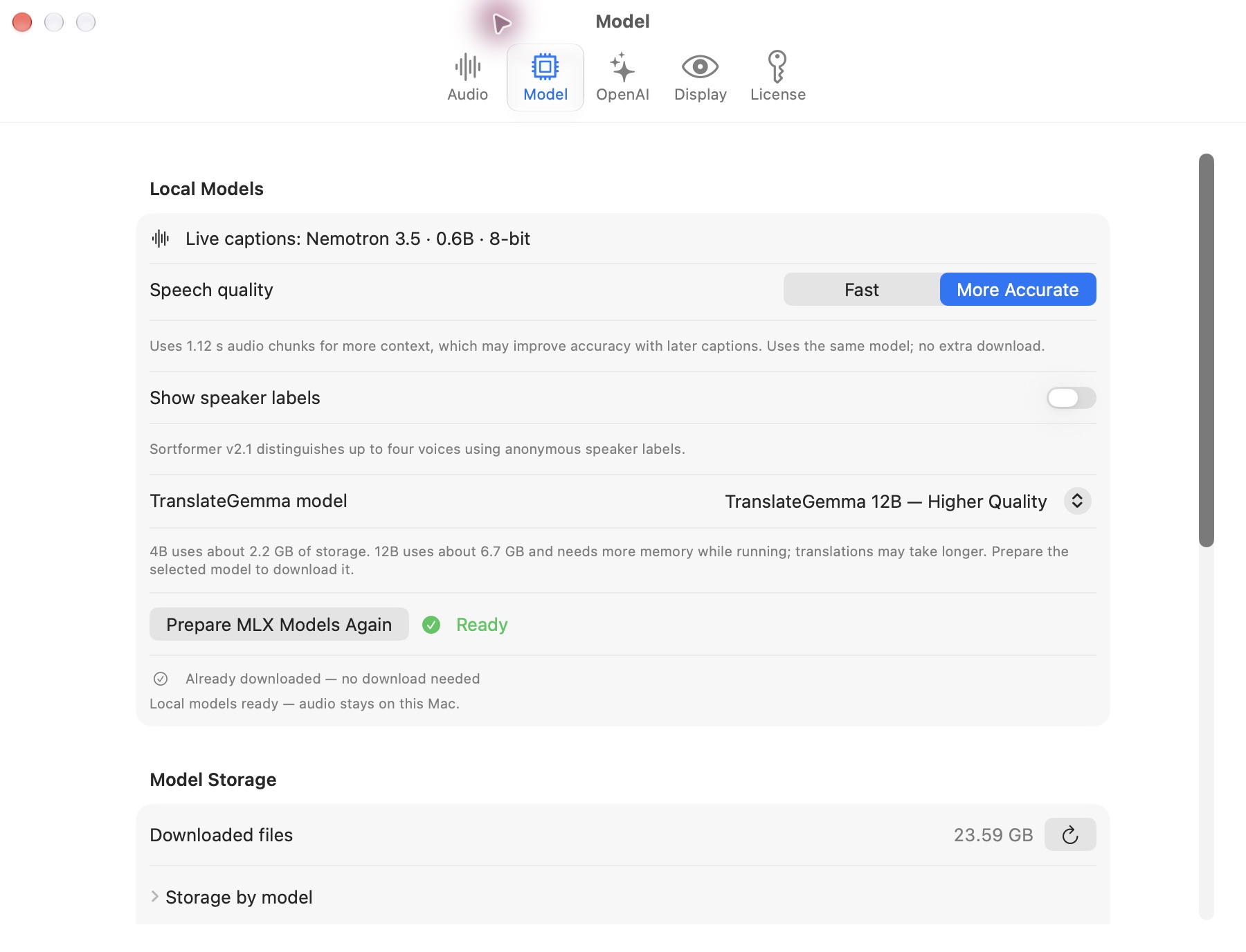
Download sizes are approximate storage figures, not memory requirements. Translation runs alongside speech recognition, so leave room for both. Settings → Model → Model Storage shows downloaded model file sizes; it does not measure RAM and excludes Apple-managed assets.
OpenAI Realtime is a separate cloud translation selection and requires internet access and OpenAI configuration. Choose one of the local methods above when you want speech and translation processed on your Mac. An unavailable local method does not automatically fall back to a cloud service.
Set up a language pair
- Choose speech and translation. In the Quick Start Guide, choose Nemotron or Apple On-Device and your spoken language. Choose Translate in the waveform menu, then open Settings → Model. Set From to the spoken language, To to the language you want to read, and Method to Apple Translation or Local Translation.
- Prepare speech and translation. Choose Prepare Selected Models in the guide. Local Translation needs the selected 4B or 12B model; changing it requires preparation again. For Apple Translation, select Prepare Translation Languages… in Settings → Model and complete macOS’s prompts. Apple speech readiness alone does not establish translation readiness.
- Allow audio and reopen. Complete the guide’s audio-permission step, then quit and reopen Sottola after granting access. Explicitly start your trial when setup is ready, or use your existing license. The first-recording steps explain this sequence.
- Test a short passage. Choose Translate in the menu bar, play speech in the selected source language, then start recording and show the overlay. Check both the original line and the translated line.
- Stop and review. Let pending captions and translation finish. With transcript auto-save enabled in Settings → Display, the saved conversation contains the completed available results.
Try English-to-French captions with the public sample
Use the same short recording to check the full path from English audio to French text. The source is a fictional planning discussion narrated by macOS’s Samantha voice, with pauses between its five paragraphs. It lasts about 40 seconds and contains no customer meeting data.
Play the English source
What this example documents: the published result was captured on October 17, 2026 in Sottola 1.0.8 build 12. This walkthrough was added on October 23; it does not represent a new recording in the current app. The 49-second saved session includes silence around the 39.73-second WAV. Screenshots show completed History after recording, not measurements of live caption delay.
Repeat the workflow on your Mac
- Choose the matching local route. On an Apple Silicon Mac with macOS 15 or later, choose Nemotron (Local Streaming). In Settings → Model, select More Accurate speech quality and a Max phrase of 13 seconds. In the same tab, choose Translate mode, set From to English and To to French, then set Method to Local Translation and select TranslateGemma 12B. This is the route used for the published sample; selecting Apple speech, Apple Translation or the 4B translator makes it a different comparison.
- Prepare and allow audio. Prepare the selected models and wait for Ready. The 12B translator alone needs about 6.7 GB of storage and more memory while running. Complete Screen & System Audio Recording permission, then fully quit and reopen Sottola after granting it. Start the seven-day trial explicitly when setup is ready, or use an active license. The first-recording guide covers these steps; preparing models does not start the trial.
- Keep the sample conditions simple. Turn speaker labels and vocabulary boosting off. Leave folder context disabled for this comparison. In Settings → Display, enable Auto-save transcripts on stop so the finished captions can be reviewed. Stop other audio playback on your Mac so it does not enter the recording.
- Record, then play. Choose Start Recording in Sottola, show the overlay, then press Play on the English source above from the beginning. Read the English line first and allow its French translation to follow. Let the whole clip finish, then choose Stop Recording and wait for pending speech and translation to complete.
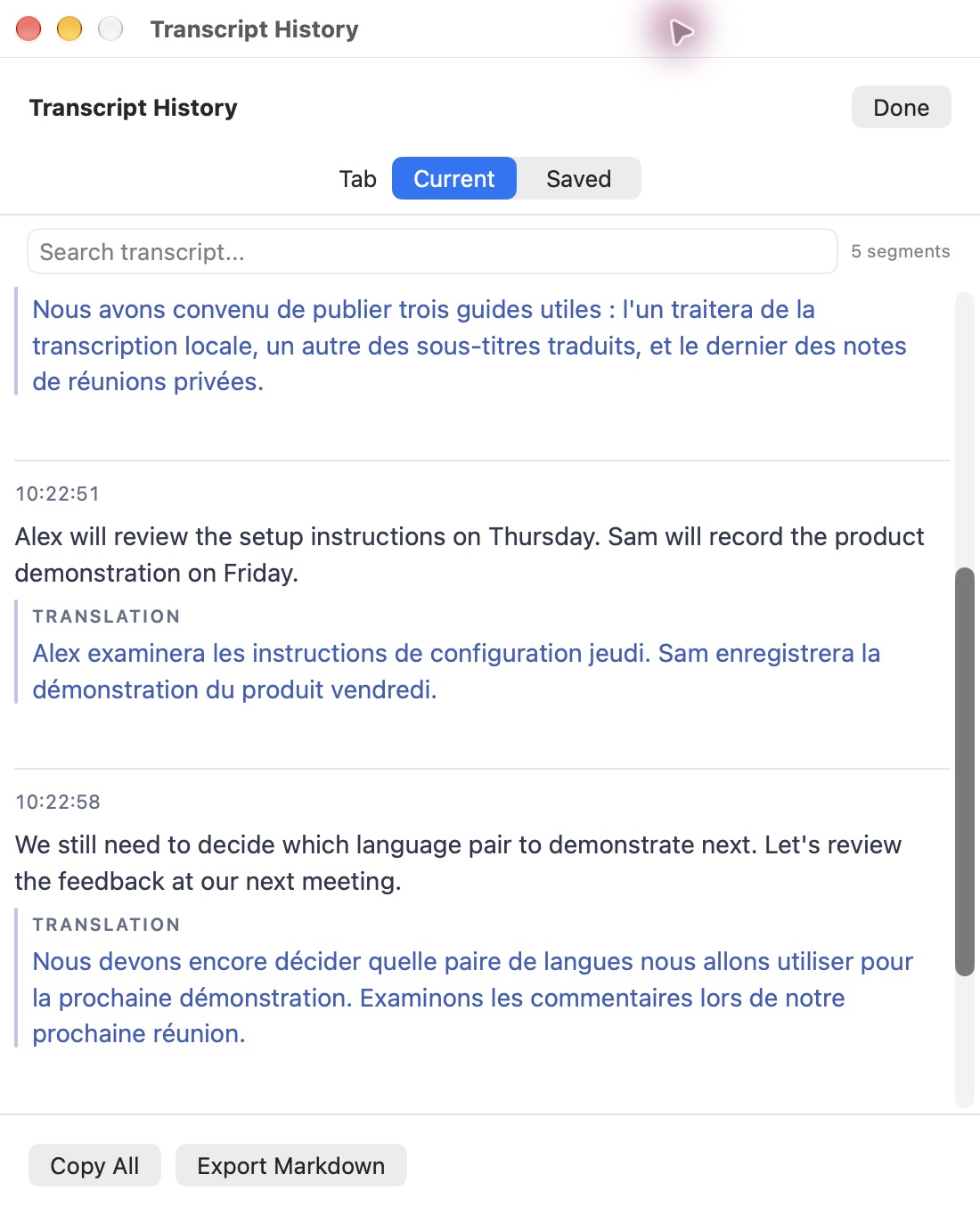
- Compare the saved conversation. Open History and compare your original captions with the narration script, then compare the French wording with our unchanged export. The historical recording contains five segments; different timing, app versions or hardware can change segmentation and wording. Do not treat an identical segment count or sentence as a pass condition.
The published run also generated notes with Qwen3.5 4B after Stop. That notes model is optional for this translation walkthrough. To compare its output too, select and prepare Qwen, enable automatic notes, and follow the private meeting notes guide. Keep Sottola running until notes finish.
Check meaning, including the imperfections
English in the saved result: “Alex will review the setup instructions on Thursday. Sam will record the product demonstration on Friday.”
French in the saved result: “Alex examinera les instructions de configuration jeudi. Sam enregistrera la démonstration du produit vendredi.”
Check that each person still has the correct task and day. Also inspect the third segment: the recognizer retained the words about publishing three guides but did not preserve all the narration script’s sentence punctuation. The generated notes repeat empty Decisions, Agreed actions, Suggested follow-ups and Open questions sections after populated sections. Those imperfections remain in the full export; the screenshot shows only part of it.
This is one clear, synthetic English voice translated into French. It does not establish accuracy for accents, overlapping speakers, other language pairs, or real calls, and it is not a speed benchmark. Use a short passage from your own intended use to decide whether the results are useful.
Use translated captions with your meeting app
Once the sample works, follow the setup for translated captions in Microsoft Teams on Mac or translated captions in Google Meet on Mac. Sottola processes the audio playing on your Mac; these are separate workflows from the meeting platforms’ built-in caption features. Check which voices are captured before relying on a complete meeting transcript.
Read changing captions correctly
When recognition revises a source sentence, its earlier translation no longer matches the current wording. The live view may keep that text visible with an Updating indicator while a replacement is generated. If replacement fails, the retained text is identified as a previous translation.
That display fallback is not treated as a matching final translation for export. This distinction matters when a late word changes a number, a name, or a negation. Wait for the final result and review consequential details before sharing them.
Custom vocabulary can help Nemotron recognize names and specialist terms before they reach translation. Apple On-Device speech does not use this vocabulary. Add phrases in Conversation Intelligence → Context before the next recording. It is recognition guidance, not a guarantee that the translator will preserve every term exactly.
Language and offline limits
The language list distinguishes supported speech languages from translation output choices. A language appearing in a picker does not establish that every provider supports every pair. Apple’s installed packs and provider availability still matter.
Nemotron offers automatic source language, but text translation needs a supported detected language or an explicit source selection. Apple speech always requires an explicit supported language and region. If a short caption does not give enough evidence, select the source yourself. Choosing the same source and target turns translation off.
Prepared local models can work without uploading meeting audio or text to a cloud provider. Initial downloads, trial activation, and paid license renewal still need internet; paid access has a 30-day offline allowance. Translation is generated text, not certified interpretation. Test your actual language pair and review important wording against the original.
Try it with your own audio.
Download Sottola for Apple Silicon and macOS 15 or later. Prepare your models, then explicitly start the seven-day trial. No card is needed.
Get Sottola for Mac