THE SHORT ANSWER
Sottola generates meeting notes from the finalized original transcript using Apple Intelligence’s on-device model or a downloaded Qwen3.5 4B model. Automatic notes are enabled by default after Stop Recording. Enable transcript auto-save if you want those notes saved with the conversation.
What the notes use
Meeting notes can include a summary, decisions, agreed actions, suggested follow-ups, and open questions. The app uses the original speech transcript as evidence, rather than treating translated captions or older generated notes as a new source.
This makes capture coverage important. Sottola records system audio playing on your Mac; it does not record your own microphone unless that sound is routed into system audio. If your own responses are absent from a call transcript, the notes cannot reliably reconstruct them. Check the transcript before relying on the meeting’s conclusions.
Notes are a separate stage from live captions. The notes model does not rewrite the live transcript. After you stop, Sottola finishes recognition and pending translation before starting the automatic notes workflow.
Choose an on-device provider
Open Meeting Notes from the menu bar. In Conversation Intelligence, the Local intelligence picker offers two providers:
- Apple Intelligence (on device). Requires macOS 26 or later, an eligible Mac with Apple Intelligence enabled, and supported model and language availability. Choose Check Availability before depending on it for a meeting.
- Qwen3.5 4B (local download). Downloads about 3.1 GB on first preparation, then runs on your Apple Silicon Mac. Select it and choose Prepare Model. Runtime memory needs are higher than the download size.
These are explicit local providers. Sottola does not silently replace an unavailable notes model with Private Cloud Compute or a different cloud service. If preparation or language support fails, the app shows the problem so you can resolve it or choose the other local provider.
Create and save meeting notes
- Prepare before the meeting. Set up local transcription, choose your notes provider, and check that it is ready. Start the trial or activate a license when you are ready to use recording and analysis.
- Choose whether to save automatically. In Settings → Display, enable Auto-save transcripts on stop. In Meeting Notes, keep Generate meeting notes automatically enabled for notes after each finished recording.
- Record, then stop. Use Stop Recording and allow pending work to finish. If another analysis or folder-indexing operation is active, automatic notes wait behind it.
- Review the selected conversation. Open Meeting Notes and use the Conversation picker to choose the current or a saved conversation. Check decisions, people, dates, and suggested follow-ups against the original transcript.
- Return to saved work. History retains saved conversations. Its Meeting Notes action opens notes for that file; Generate Notes can create notes for a saved conversation, and Regenerate can update an existing result.
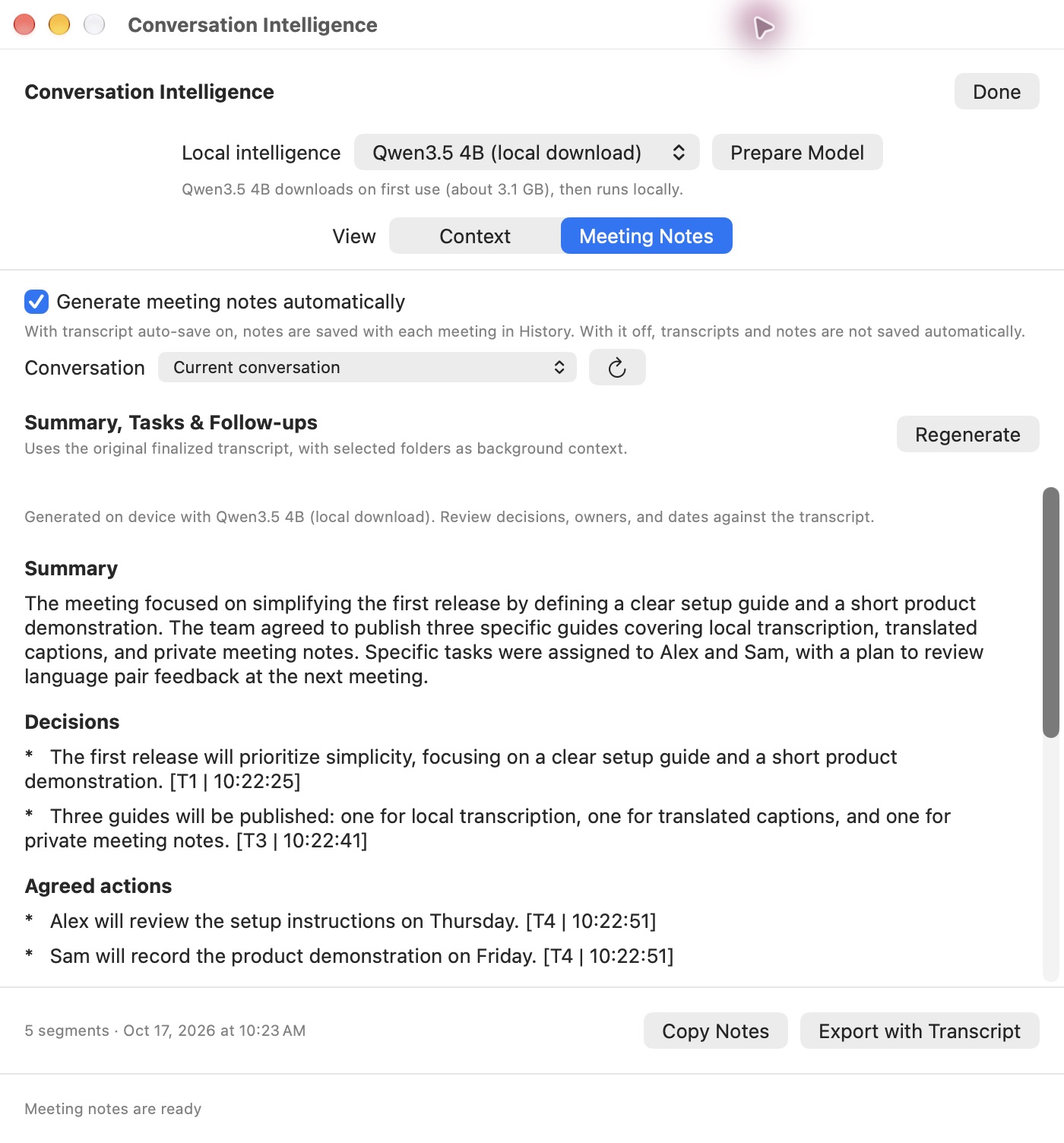
With auto-save enabled, completed notes are saved with the matching transcript. With it off, automatic transcripts and notes are not saved to disk; earlier automatic notes remain available only while the app stays open. Copy or export what you need before quitting.
You can close the notes window or start another recording while an automatic job runs. Keep Sottola itself running until it finishes: unfinished automatic jobs do not resume after quitting. A failed job stays visible and is not repeatedly retried automatically.
Add optional folder context
In Conversation Intelligence → Context, choose Add Folder to index documents you explicitly select. Relevant saved file summaries can provide background for notes, with source links so you can inspect where that context came from. This is useful for a project’s terminology and prior decisions.
Supported inputs are UTF-8 text, code, and Markdown, not PDF or Word files. File reads are bounded, so large files can have partial coverage. Check the coverage and progress shown for the folder instead of assuming every document was fully read. Indexing can be paused and resumed; use Refresh after changes, or forget context you no longer need.
The app persists summaries and references locally. Enabled folders can also contribute a small glossary for optional Nemotron speech vocabulary boosting. Apple On-Device speech does not use that glossary; folder context remains available to the separate notes provider. Full documents and their summary prose are not used as instructions to rewrite live captions.
Review the result and its privacy limits
Agreed actions and suggested follow-ups are different. A useful suggestion is not proof that someone committed to it. Check owners and deadlines against the transcript, and keep the original alongside the summary. Incomplete audio, transcription errors, and model mistakes can all affect the notes.
The sample export also retains repeated empty notes headings. Review structure as well as facts before sharing the result.
Choose local transcription as well as a local notes provider if you want the full processing path to stay on your Mac. Selecting an OpenAI transcription engine sends audio through that separately selected cloud route even when the later summary is local.
Downloads and licensing still require connectivity: starting a trial or activating a license needs internet, and paid licenses renew their 30-day offline allowance online. If access expires, new analysis is gated, but existing notes, context, transcripts, copy, and export remain available. See the privacy details for local files and licensing information.
Try it with your own audio.
Download Sottola for Apple Silicon and macOS 15 or later. Prepare your models, then explicitly start the seven-day trial. No card is needed.
Get Sottola for Mac