THE SHORT ANSWER
Sottola transcribes system audio on an Apple Silicon Mac with Nemotron or Apple On-Device speech. Prepare the selected models, authorize Screen & System Audio Recording, quit and reopen the app, then explicitly start your trial and record while audio is playing. No meeting bot or extra audio driver is needed.
Before you start
You need an M1 or newer Mac running macOS 15 or later. Download Sottola, open the disk image, drag the app into Applications, and launch it. The controls live in the menu bar; there is no Dock icon. The Quick Start Guide opens by default and can be reopened from the menu.
Internet access is needed for initial model downloads and trial or license activation. Local recognition runs on your Mac after preparation. Paid licenses need a free online renewal at least every 30 days, so local processing does not mean permanent operation without any internet access.
Check which voices you can hear. This recording path captures sound playing through your Mac. It does not capture your own microphone unless that sound has been routed into system audio. A call’s remote participants may therefore appear without your own spoken responses. Tell participants when you transcribe a conversation.
Choose your local speech engine
In the Quick Start Guide’s Prepare models step, choose your speech engine before downloading. Nemotron (Local Streaming) remains the default. It works on macOS 15 or later, supports 28 spoken languages, and offers automatic language selection. Its speech model needs about 760 MB on a new installation; the optional speaker model brings their combined download to roughly 1 GB.
Apple On-Device is an explicit alternative on macOS 26 or later. Choose a supported spoken language and region from the list supplied by your Mac. Auto is unavailable. Apple manages its speech assets and may download them during preparation; Sottola shows their readiness. No download-size estimate is available for these Apple-managed assets.
Apple speech is separate from Apple Translation and Apple Intelligence meeting notes. It does not require Apple Intelligence. Optional text translation needs its own models or language packs. Apple speech does not use Nemotron’s quality, phrase-duration, speaker-label or vocabulary settings; those choices remain saved for Nemotron. An unavailable local engine never silently switches to cloud speech.
| What you need | Nemotron (Local Streaming) | Apple On-Device |
|---|---|---|
| Mac requirements | Apple Silicon, macOS 15+ | Apple Silicon, macOS 26+ |
| Spoken language | 28 supported languages; Auto is available | Choose a supported language and region; no Auto |
| First preparation | About 760 MB for speech; optional models add to this | Apple-managed assets; size is not reported by Sottola |
| Speech options | Fast or More Accurate, optional anonymous speaker labels and vocabulary boosting | Apple manages phrase timing; those Nemotron options do not apply |
| Translated text | Separate from recognition: choose Apple Translation on macOS 26+ or a local TranslateGemma model on macOS 15+. | |
On macOS 26+, try the engine that supports your spoken language with a short sample before a meeting. Apple-managed assets are not a promise of a smaller download or better recognition. On macOS 15, choose Nemotron and, if you need translated captions, local TranslateGemma.
Make your first recording
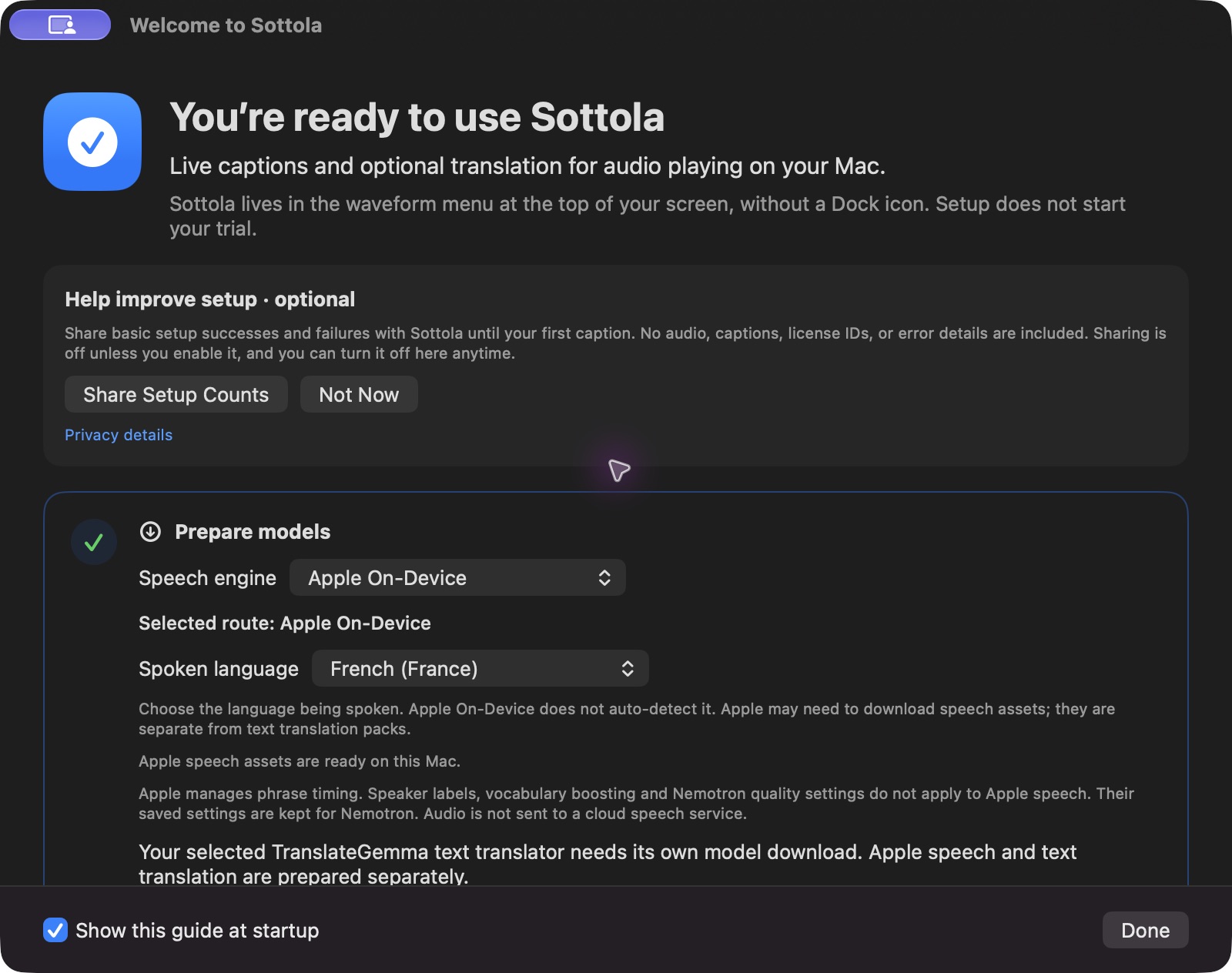
- Prepare the selected models. In the Quick Start Guide, choose your engine and spoken language, then select Prepare Selected Models. Wait for Ready. Nemotron, Apple speech and any selected TranslateGemma translator have separate preparation requirements. Opening the guide does not download missing assets.
- Authorize system audio. Choose Request Audio Access in the guide. In macOS System Settings → Privacy & Security → Screen & System Audio Recording, enable Sottola. If it is missing, add /Applications/Sottola.app with the + button.
- Quit and reopen Sottola. Use Quit Sottola in the guide or Quit from the waveform menu, then reopen the app from Applications. This applies the newly granted audio permission. Closing the guide window does not quit the menu bar app. Prepared files are reused after reopening.
- Explicitly start your trial. Once models and audio access are ready, choose Start Seven-Day Trial in the guide. No card is required. The button starts the trial clock, not a recording. Preparing models, granting permission and opening the guide do not start a trial. Existing license and tester-code activation remain available in License settings.
- Play audio and see your first caption. Use a short video or call audio you are authorized to transcribe. Choose Start Recording in the guide, and check the first words. Use Show Overlay in Sottola’s waveform menu for floating captions above other windows.
The guide resumes the unfinished setup step after reopening. You can hide it on future launches and reopen it from Quick Start Guide in the waveform menu. Optional setup counts are off by default; declining does not limit the app. See the privacy details before choosing whether to share them.
Understand the captions
The first words are drafts. As more audio arrives, Sottola updates the same speech turn instead of appending a duplicate sentence. A pause finishes that turn. This is useful for following a conversation, but a draft can change before it is final.
With Nemotron selected, Settings → Model offers Fast and More Accurate speech quality. Fast uses 320 ms audio chunks; More Accurate uses 1.12-second chunks to give the model more context. These are processing chunk sizes, not promises about total caption delay. More Accurate can produce later captions, and any accuracy improvement depends on the audio. Both use the same weights, with no extra download.
Nemotron’s optional speaker labels distinguish up to four anonymous voices. They are not identity recognition, and overlap can make attribution uncertain. For unfamiliar names or project terms, add custom vocabulary in Conversation Intelligence → Context before recording. Vocabulary changes apply to the next Nemotron recording. Apple speech manages phrase timing itself and does not apply these quality, speaker or vocabulary options.
Save and review the result
Choose Stop Recording and let Sottola finish. Stopping drains captured audio, completes speech recognition, and waits for pending translations before saving. Avoid judging the final transcript from the last visible draft.
In Settings → Display, enable Auto-save transcripts on stop if you want a saved Markdown file. The default folder is Documents/MeetingWhisper/Transcripts; the older folder name is retained for existing data. Open History to browse, search, copy, or export conversations. Existing saved transcripts remain readable and exportable after a trial expires.
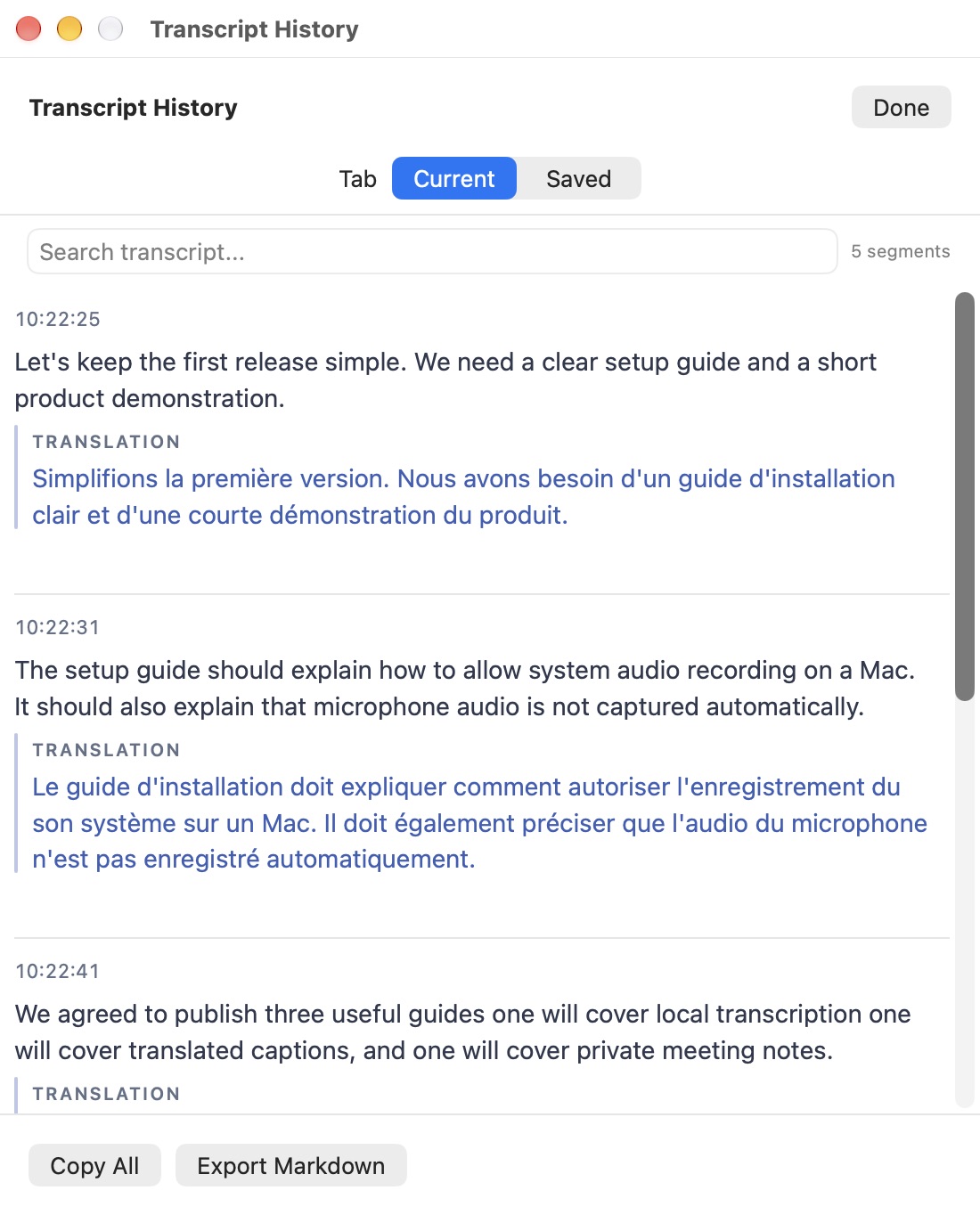
You can also add translated captions or generate meeting notes on your Mac. Each uses its own settings, so prepare those features before the conversation you want to keep.
For an international call, follow the specific Microsoft Teams caption guide or Google Meet caption guide. Both explain how to check the sound reaching Sottola and keep your original and translated text visible.
If something is missing
No text: check that audio is actually playing, permission is enabled for Sottola, the app has been quit and reopened after granting access, and the selected models are ready. With Apple speech, also check the selected language and its asset status. An old MeetingWhisper privacy entry does not authorize the renamed app. Microphone permission is not the missing permission for this system-audio path.
Wrong words: confirm the spoken language, reduce overlapping playback where possible, and, with Nemotron, test More Accurate before the next session. Review names, numbers, and commitments against the original conversation. No speech recognizer guarantees a perfect transcript.
Try it with your own audio.
Download Sottola for Apple Silicon and macOS 15 or later. Prepare your models, then explicitly start the seven-day trial. No card is needed.
Get Sottola for Mac