Local speech. Floating captions.
Nemotron turns system audio into live text. Keep captions above your work, then save, search, copy, or export your transcripts.
 Sottola
Get Sottola
Sottola
Get Sottola
A LITTLE MORE CLARITY. ON MAC AND WINDOWS.
Follow conversations across languages. See live transcripts and translated captions together, then leave with meeting notes. Local processing by default.
See supported languagesSOTTOLA FOR WINDOWS · VERSION 1.0.0
Follow the audio playing on your PC with floating captions. Translate the conversation, save the transcript, and turn it into useful meeting notes. Your local models do the work on your computer.
Windows license and pricingREADY FOR YOUR NEXT CONVERSATION
Windows 10 version 2004 or later, or Windows 11 · x64
Download Windows installerThe app and installer are unsigned, so Windows may show an unknown-publisher or SmartScreen warning. Download only from sottola.com and use the checksums above to verify your file.
Model downloads are additional; setup shows their sizes. Start with 16 GB of memory for speech plus translation or notes. The larger 12B translator needs more memory. You don’t need Python, developer tools, or an extra audio driver.
Nemotron turns system audio into live text. Keep captions above your work, then save, search, copy, or export your transcripts.
Choose your spoken language and a local TranslateGemma 4B or 12B model. Read translated text alongside the original captions.
Local Qwen models create notes and index the text folders you choose. Optional anonymous speaker labels are added after you stop recording.
Start your seven-day trial explicitly in the app, after preparing your models. Windows licenses are separate from Mac licenses. Your saved transcripts stay available to read and export after the trial.
Inside Sottola for MacFOLLOW THE CONVERSATION
The completed transcript from our narrated planning sample, shown in Sottola’s History window.
Set up local transcription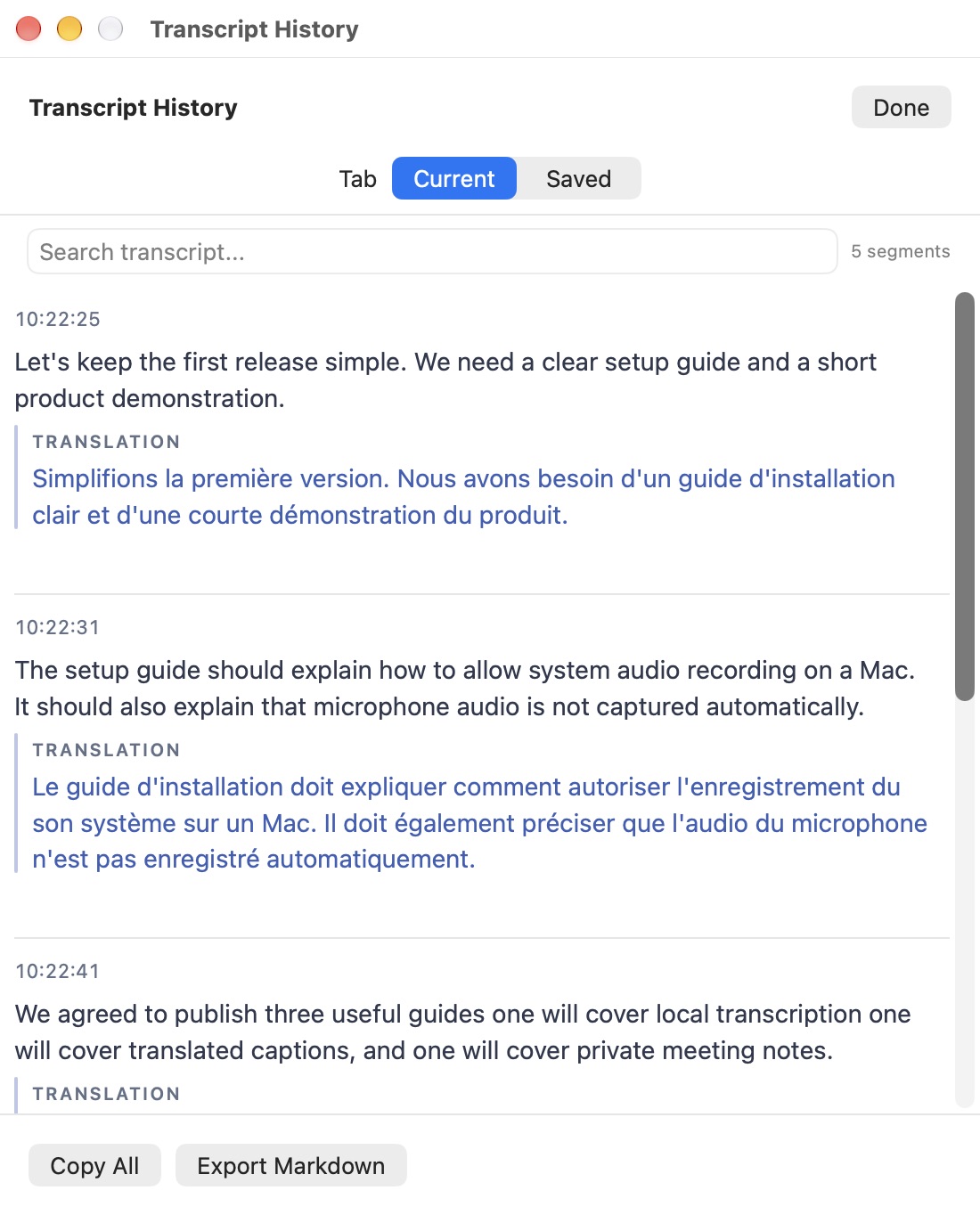
TWO LANGUAGES. ONE VIEW.
English speech and French translations, produced locally and reviewed together in Transcript History.
Choose a translation method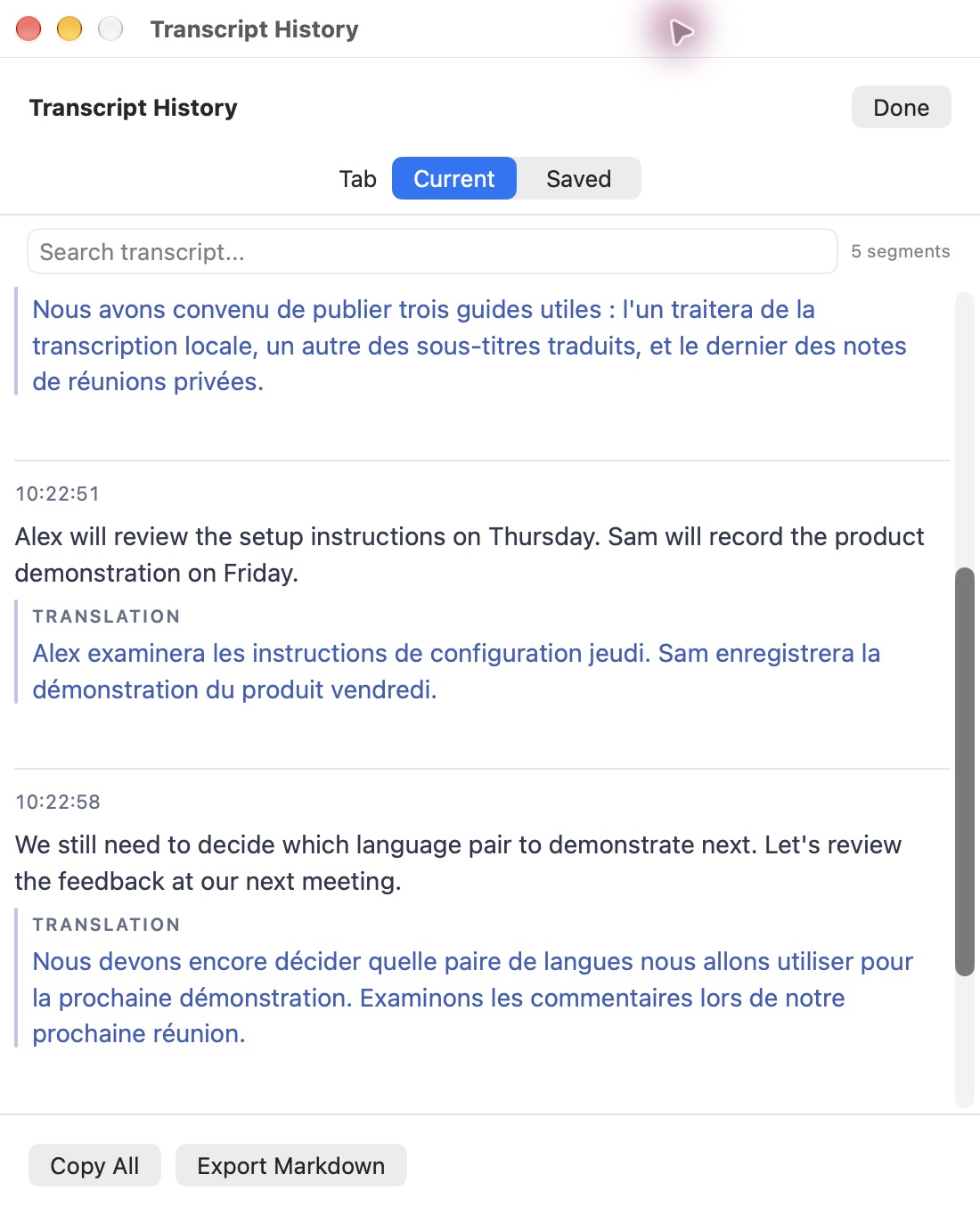
AFTER THE LAST WORD
Review the summary and actions generated from the completed sample, with the transcript close at hand.
Create private meeting notes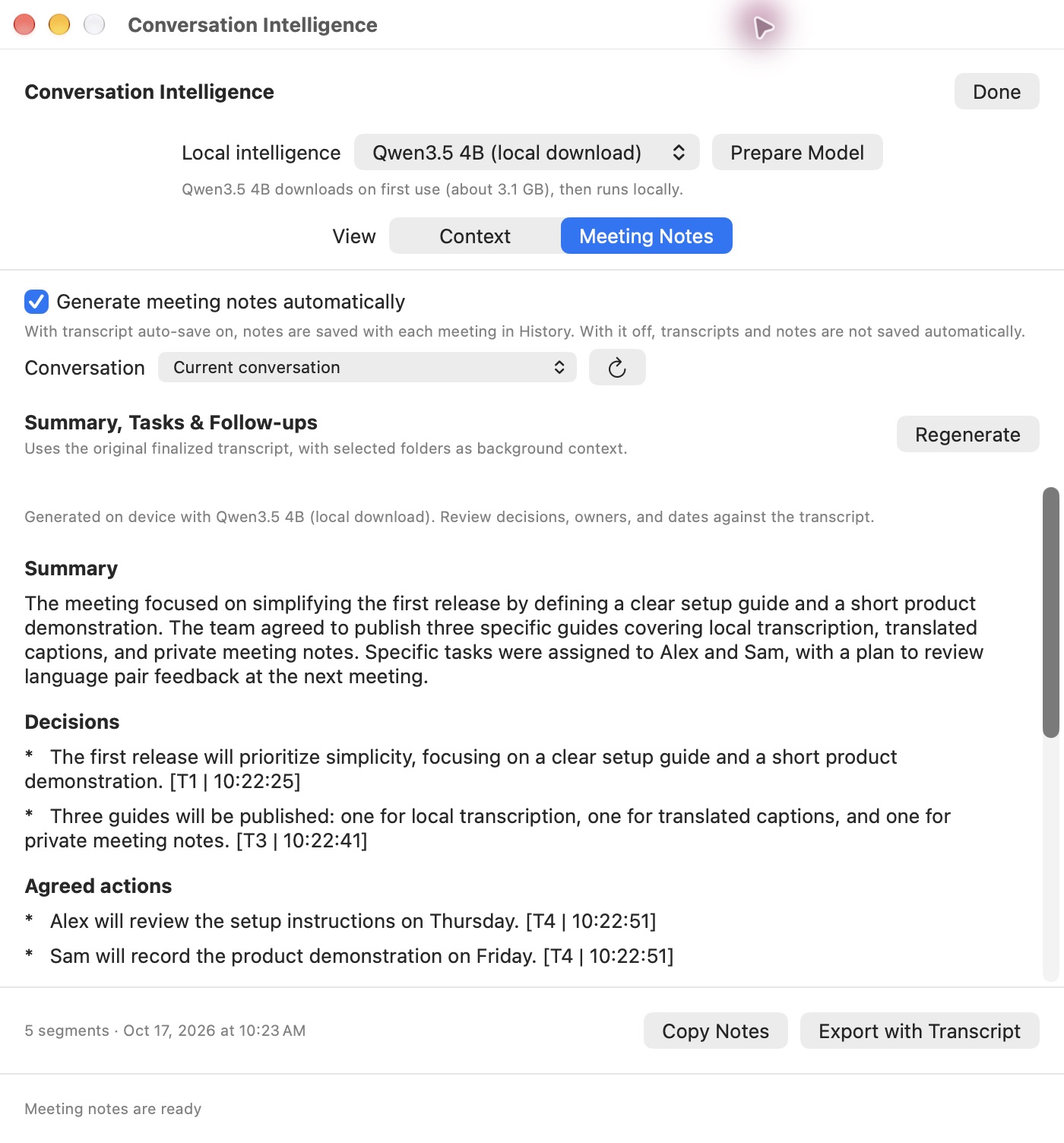
Captured after recording in Sottola for Mac 1.0.8 build 12. The discussion is a fictional, computer-narrated sample. Listen to the source and inspect the results.
IN THE MOMENT. AND AFTER.
From the first word to the next step,
Sottola helps you keep up.
Turn the audio playing on your Mac or PC into live text with local Nemotron speech. Keep floating captions above your work, and save the transcript for later. Apple On-Device speech is also available on supported Macs.
Live captions · Saved transcriptsRead the original speech and its translation together. Choose a downloadable TranslateGemma 4B or 12B model, or Apple Translation on macOS 26+ with a supported language pair.
Find your languagesGenerate meeting notes locally: summaries, decisions, and agreed actions. Search past transcripts and export them as Markdown.
Explore meeting notesSPEAK. READ. UNDERSTAND.
Choose the language you hear,
then the language you want to read.
TRANSCRIPTION · NEMOTRON FOR MAC
On Mac, select one of these spoken languages, or use Auto. Nemotron is also the default local speech engine on Windows, with the choices described below.
On Mac, speaker labels, custom vocabulary and Fast / More Accurate settings apply to Nemotron. Windows offers optional speaker labels after recording and its own speech quality settings; custom vocabulary is a Mac feature. Apple manages its own phrase timing. Optional cloud engines have different coverage. Armenian is not supported by Nemotron.
TRANSLATION · MAC OUTPUT LANGUAGE
Read the translation beside the original captions. Sottola for Mac offers these output choices, including two Chinese writing systems. Availability depends on your translation engine and language pair.
Windows 1.0.0 offers English, Spanish, French, German, Italian, Portuguese, Russian, Japanese, Mandarin Chinese, Korean, and Hindi in its speech and translation pickers. You can also use automatic detection for speech. Select an explicit spoken language when using translation.
Mac language options described are for Sottola 1.0.10 build 14. Windows 1.0.0 uses local Nemotron speech and TranslateGemma translation; Apple services are Mac-only. Speech recognition and translation support are separate: both your spoken language and chosen output must work with your selected engines. Accuracy varies by language, model, and audio quality. Try your language pair during the seven-day trial.
AFTER THE LAST WORD
Stop recording and let Sottola turn the conversation into a useful summary, decisions, agreed actions, and open questions.
Notes link back to transcript timestamps so you can check the details. Keep them alongside the conversation, copy them, or export everything as Markdown.
BRING THE BACKGROUND WITH YOU
Your meetings don’t start from zero. Add a project folder, repository, or collection of text documents, and let Sottola build a local context library.
Find relevant background while you talk, and give your meeting notes context from the folders you enable. On Mac, you can also add custom names and terms, then preview a small glossary drawn from your vocabulary and enabled folders to help Nemotron recognize them.
Vocabulary boosting is an optional Mac feature and applies to Nemotron speech. Each recording uses the glossary prepared when it starts; vocabulary edits apply to the next recording.
YOUR CONTEXT LIBRARY
Add text, Markdown, or source code you want the app to use. It reads only the folders you select.
Index the folder with your on-device provider. Pause, resume, or refresh it when the files change.
Review relevant background and source links. Enable the context you want for future notes.
HEAR IT. READ IT. CHECK IT.
This fictional planning discussion was narrated with a built-in macOS voice. The screenshots show Sottola’s actual output, not a recreated interface.
Use the source to compare the recognized text and generated notes. One short, clean sample is a demonstration, not an accuracy or speed benchmark for your meetings. The unedited notes include repeated empty headings; review generated output against the transcript.
A fictional discussion about a setup guide, a demonstration, and next steps. No customer meeting data is included.
Captured October 17, 2026 · Sottola 1.0.8 build 12 · Nemotron More Accurate · TranslateGemma 12B · English → French · Qwen3.5 4B notes. Folder context, vocabulary boosting, and speaker labels were off.
A LITTLE HELP GETTING STARTED
Prepare speech, enable audio and reopen, then start your trial and see the first caption.
Read the guide ↗ 02 / TRANSLATIONChoose the spoken language, target language, and the right local method.
Read the guide ↗ 03 / MEETING NOTESGenerate a summary and actions on your Mac, then review and export them.
Read the guide ↗Follow remote speakers in another language on your Mac, even when Teams’ own translated captions are unavailable.
Read the guide ↗ GOOGLE MEETCheck meeting audio, choose your languages, and position Sottola’s captions alongside the conversation.
Read the guide ↗YOUR COMPUTER DOES THE WORK.
Sottola’s default transcription runs on your Mac or PC. Local translation and meeting notes can stay there, too.
Prepare the selected models and language assets, then use those local features without sending meeting audio or text to a cloud service. Cloud transcription is an explicit choice in settings.
A closer look at privacyGET STARTED ON MAC
Drag Sottola into Applications and open it. In the Quick Start Guide, choose Nemotron or Apple On-Device speech, select your spoken language, and prepare the selected models. Wait for Ready. Setup does not start your trial.
Choose Request Audio Access and enable Sottola under Screen & System Audio Recording in macOS. Then quit Sottola and reopen it from Applications to apply access. Closing the guide window does not quit the app.
Back in the guide, explicitly start the seven-day trial or use your existing license. Play a short spoken video or meeting on your Mac, then choose Start Recording. Your first caption appears in Sottola; open the floating overlay from the waveform menu.
YOURS TO KEEP
Start with seven days of Sottola. No card, no subscription. Prepare your models first, then start your trial in the app.
Choose a license for your platform. Mac and Windows licenses are purchased separately, each covering two active computers of that type. Your saved conversations stay yours, even after your trial ends.
SOTTOLA FOR MAC
Checking Mac checkout availability…
Internet required for activation and a free license check at least every 30 days. Models process locally. Any applicable tax is shown at checkout.
Retrieve your Mac license ↗SOTTOLA FOR WINDOWS
Windows license · secure checkout
A separate Windows license. Internet required for activation and a free license check at least every 30 days. Any applicable tax is shown at checkout.
Download and start your Windows trial ↗A FEW THINGS TO KNOW
You need an Apple Silicon Mac (M1 or newer) running macOS 15 or later. Intel Macs are not supported by this download. You don’t need Xcode, Python, or an extra audio driver. Apple On-Device speech is optional and requires macOS 26 or later, a supported spoken language and prepared Apple-managed speech assets. Nemotron remains available on macOS 15+. Apple Translation separately requires macOS 26+ and installed translation packs; Apple’s meeting-notes provider also needs an eligible Mac with Apple Intelligence enabled.
Sottola for Windows supports Windows 10 version 2004 or later and Windows 11 on x64 PCs. Start with 16 GB of memory for local speech plus translation or notes; larger models need more. The app includes its desktop runtimes, so you don’t need Python or developer tools. Download the installer or portable ZIP, prepare your models, and choose the output device playing your meeting.
Sottola captures system audio: the sound playing through your Mac or the selected Windows output device from a call, video, or other app. It doesn’t join your meeting as a bot. Your own microphone is not captured by this system-audio path unless its sound is routed into system audio. Let participants know when you transcribe a conversation.
Local transcription, downloaded translation, and meeting notes run on your computer after their models are prepared. Internet is needed to start your trial, activate a license, and renew a paid license’s 30-day offline allowance. Renewal is free and happens automatically when the app can connect. Your purchase is not a subscription. On Mac, Nemotron speech needs about 760 MB; with its optional speaker model, downloads total roughly 1 GB. Apple manages its own speech assets. TranslateGemma adds about 2.2 GB for 4B or 6.7 GB for 12B. The notes model needs additional storage. Windows setup shows download sizes for its own model files. Optional cloud engines also need internet.
Quiet audio now shows “Listening — waiting for system audio” while recording continues. Silence between speakers no longer produces a misleading screen-recording permission warning.
Fixed Apple On-Device audio timing that could stop recording and close the caption window with an “Audio input timestamp overlaps” error. Audio chunks now stay continuous, including through silence. If recognition does fail, its original error stays visible instead of being replaced by a cleanup error.
Apple On-Device remains an explicit local choice on macOS 26+ with a supported spoken language and prepared speech assets. Nemotron remains the default on macOS 15 and later. The Quick Start Guide, optional setup counts, translation choices, and existing licenses work as before.
Windows 1.0.0 brings local Nemotron transcription, floating captions, local TranslateGemma translation, Qwen meeting notes and folder context, searchable transcript history, and Markdown export. Optional anonymous speaker labels are added after Stop. Install with the Windows setup program or use the portable ZIP. The seven-day explicit-start trial and paid licenses use separate Windows seats.
Meeting notes generate after you stop recording by default; you can turn automatic notes off or generate them manually. To generate notes for an earlier saved recording, choose it in Meeting Notes or use the Meeting Notes button in History, even after restarting Sottola. Download the local Qwen model on Mac or Windows, or choose Apple’s on-device model on an eligible Mac with macOS 26 or later. The same local providers can index folders you explicitly choose, so relevant file summaries can support your meeting notes. Context accepts UTF-8 text, Markdown, and source code, not PDF or Word files. Keep Sottola open until indexing and note generation finish. Neither feature automatically switches to a cloud model.
On Mac, optional vocabulary boosting extracts a limited glossary of names, acronyms and technical terms from enabled context and your custom vocabulary. It influences Nemotron’s recognition as you speak; accuracy still depends on the audio. Translation uses the resulting recognized captions. Qwen and Apple’s notes model continue to handle folder summaries and meeting notes, without reviewing or rewriting live captions. Folder vocabulary is not sent to cloud speech engines.
Nemotron supports 28 spoken languages. Apple On-Device shows the languages and regions supported on your Mac and requires an explicit choice. The Mac text translation picker offers 20 output choices. Windows offers 11 named choices for speech and translation, plus automatic speech detection. See the language lists and engine requirements. Speech support and translation-pair availability are separate; test your pair during the trial. On Mac, Nemotron’s optional speaker labels distinguish up to four anonymous voices; overlapping speech can be labeled “Multiple speakers.” Windows adds optional anonymous speaker labels after Stop. Apple speech does not provide speaker labels in Sottola.
Try all features for seven days, with no payment details. The trial begins when you choose Start Trial in the app. Afterwards, a US$39 one-time license covers two Macs or two Windows PCs, depending on the platform you purchase. Mac and Windows licenses are separate and are not interchangeable. Move a seat by deactivating that computer in License settings. Existing transcripts and saved notes remain available to read, copy, and export when the trial ends.
Your key is available on the private purchase page after payment. Save a license file or copy the key there; that page also shows the status of your license email.
License emails come from Sottola <no-reply@wilder.ing> to the address used at checkout. Check spam if an email is missing, and keep a private copy of your key. Replies and support requests go to me@wilder.dev. If email is delayed or unavailable, you can still retrieve your key in the checkout browser for 30 days.
With local engines selected, meeting audio and text are processed on your computer. Model preparation connects to the provider to download models or Apple-managed language assets. Saved transcripts and context from folders you explicitly choose remain local. Selecting an optional OpenAI engine sends the relevant audio or text to that service. Licensing sends a random installation identifier and activation credentials to sottola.com for Mac or windows-license.sottola.com for Windows, never audio, transcripts, or context files. Stripe handles payment and billing information. When license email is enabled, Resend processes the checkout email address and license message to send your key; meeting content is never included. A secure purchase cookie lets this browser retrieve your license key for 30 days; save a private copy.
In app versions that offer optional setup counts, this setting is off until you choose to allow it in the Quick Start Guide. If allowed, the app sends only fixed setup milestones and failure categories to sottola.com, such as model preparation, permission, trial start, recording and the first caption. It sends no installation identifier, license, meeting content, error text, file paths, cookies or campaign label with those events. The server stores only daily event totals for 90 days, not individual event records. The receiving server sees your IP address for delivery and briefly uses it for rate limiting; the address is not saved in these totals or request access logs. Operational error logs may contain network information when a request fails. You can turn counts off in the guide without limiting the app. This stops future sends and cancels pending requests; events already received cannot be withdrawn individually from aggregate totals. Failed sends are not retried, and enabling counts later does not send earlier completed steps. Setup counting stops after the first caption; later recordings are not counted. These counts do not identify installations or connect app use to advertising clicks. No Firebase or Google analytics SDK is used.
Ad measurement is optional. Only after you choose Allow ad measurement, Sottola saves a secure first-party cookie for up to 30 days containing a shared campaign label, not a unique visitor identifier. If you purchase in that browser, the label can be associated with your existing private order to count campaign purchases. The label is deleted from the order after 90 days; aggregate campaign totals may be retained. Ad privacy choices in the footer lets you view or withdraw browser consent. Withdrawal removes the optional cookie and stops future attribution from it; labels already attached to orders follow the 90-day deletion period. Declining does not affect downloads or purchases.
This website uses no Google advertising or analytics tags, browser fingerprinting, or cross-site tracking. It does not use ad click identifiers for measurement or export purchase or visitor data to Google. The hosting server keeps operational access logs and can produce aggregate public-page and installer request counts with broad referral categories, including ChatGPT, Claude, Perplexity, Gemini, and Copilot. A recognized referral host or a single allowlisted source tag is reduced to one fixed category on arrival; this creates no cookie and is separate from optional ad measurement. The separate traffic-count log excludes IP addresses, full URLs, cookies, and purchase or licensing requests.
Speech recognition, translation, and generated notes can make mistakes. Review important details against the transcript and source timestamps. Sottola’s notes help you follow up; they don’t send messages or create tasks on your behalf.
SOTTOLA FOR MAC · LESS TO JUGGLE. MORE TO HEAR.
Live transcription, translated captions, and meeting notes. Right on your Mac.
Download for Mac Using Windows? Get Sottola for Windows ↗